How to maintain accounting accuracy: UK business guide
Learn a few quick tips to improve and maintain accounting accuracy, from choosing the right software, managing FX and more.



If your business is working across borders, your accounting software needs to keep up. However, managing foreign currencies in your books can quickly become a headache - mainly because of fluctuating exchange rates and hidden bank fees.
Fortunately, Xero is built to handle the complexities of global business. Its multi-currency features are designed to make sending invoices, reconciling bank accounts and tracking performance across different regions seamless.
In this guide, we walk you through everything you need to know about using multi-currency in Xero. This includes how to set it up, manage exchange rates and to integrate with Wise Business to save time and money on your international bills.
💡 Learn more about Wise Business
Yes, Xero has multi-currency capabilities allowing you to send invoices, receive bills, and reconcile bank accounts in over 160 different currencies.¹
Where Xero’s approach really shines is automation. Rather than manually calculating the value of a USD invoice in GBP (or your local currency) using a spreadsheet and yesterday’s exchange rate, Xero updates your exchange rates hourly. This gives you a real-time view of your cash flow and ensures that your financial reports accurately reflect your business' standing, regardless of currency fluctuations.
However, these features aren’t available on every Xero plan. You must be on a specific subscription tier to unlock them.
Before you dive into the settings, you need to check your subscription. To access the multi-currency functionality, you typically need to be on the Premium plan.²
There’s usually no separate add-on fee for multi-currency, but the monthly subscription cost for the Premium plan is higher than the standard tiers.
The truth is, if you transact internationally even a few times a month, the answer is likely yes. This is because the time saved on manual conversions and the accuracy of automated exchange gain and loss reporting usually pays for the price difference immediately.
Getting started is straightforward - simply follow the steps below.
You can’t create an invoice or a bank account in a foreign currency until that currency is added to your organisation's settings.
Once added, you can view the current exchange rate that Xero is using. Xero sources these rates from XE.com and updates them hourly. ³
If you have a bank account that holds foreign currency, you need to mirror this in Xero. However, it’s important to note that you should never try to map a foreign currency bank feed to a Xero bank account set up in your base currency as this creates a reconciliation mess.
If you’re moving to Xero from another system and already have funds in foreign accounts or unpaid foreign invoices, you’ll need to enter your Conversion Balances.
This ensures your opening balances match what is actually in the bank. You enter the foreign amount, and Xero will ask for the exchange rate on the date of conversion to establish the value in your base currency.
By default, Xero integrates with XE.com pulling the mid-market rate every hour.² This can be beneficial for quoting and invoicing, as it ensures you are using a current market rate.
However, if you’ve agreed on a fixed exchange rate with a client, or if your bank gave you a specific (and likely worse) rate, you can manually override the exchange rate on any invoice or bill.
This is where Xero’s multi-currency logic shines.
Unrealised gains/losses: Imagine you send an invoice for £1,000. On the day you send it, that £1,000 is worth $800. A week later, the exchange rate shifts, and that £1,000 is now worth $780. You haven’t been paid yet, so you have a paper loss of £20. Xero tracks this automatically in reports so you know your true financial position.
Realised gains/losses: When the client finally pays you, the money hits your bank. If the £1,000 converts to $790, you have "realised" a loss of £10 compared to your original invoice value. Xero calculates this difference automatically and posts it to a specific "Foreign Currency Gains and Losses" expense account.
Without this feature, you would have to manually calculate the difference for every single international transaction to balance your books.
To Invoice a client overseas:
To record a supplier bill, the process is the same. When you receive a bill from a software vendor, you enter it into Xero and the platform does the rest. This keeps your Accounts Payable accurate.
| 💡 See our complete guide to invoicing on Xero |
|---|
Reporting is vital for understanding which markets are profitable and where you might be losing money on exchange rates. Xero offers a specific Foreign Currency Gains and Losses Report.
This gives you a summary of:
You can also view your Balance Sheet and Profit & Loss in different currencies.
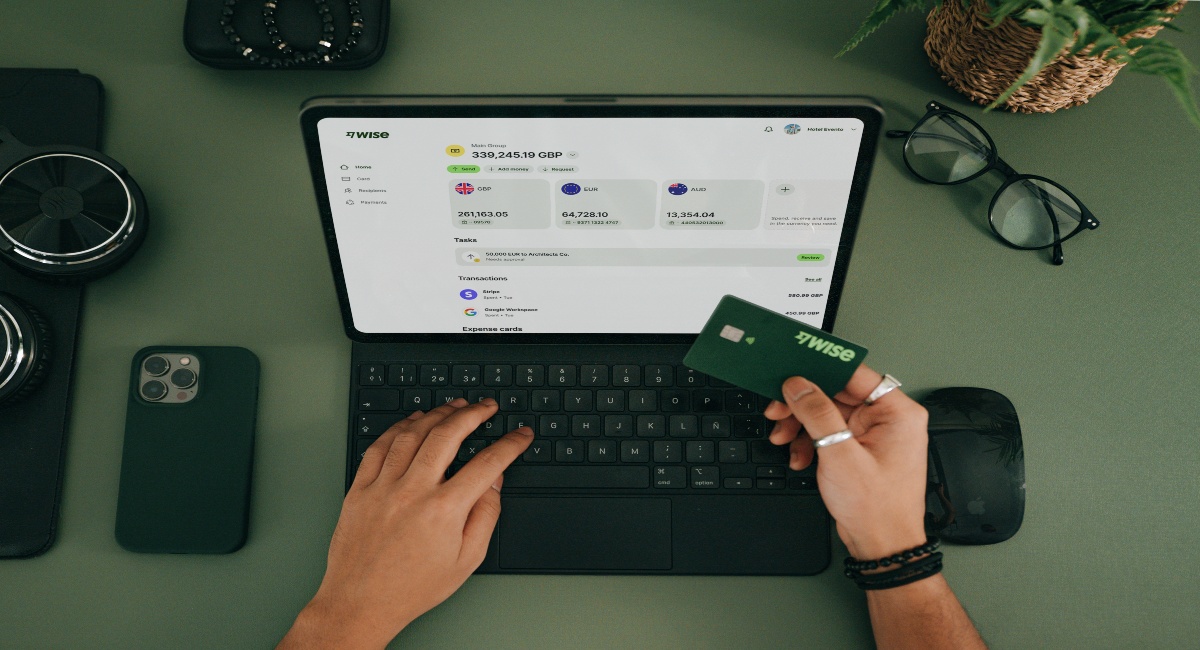
While Xero handles the accounting of multi-currency well, it doesn't solve the problem of high bank fees when you actually move the money. This is where the Wise Business integration becomes essential.
In fact, connecting the two solves the three biggest pain points of international business: high fees, slow data entry and messy reconciliation. This is thanks to:
Automatic bank feeds: Connect your Wise Business account to automatically sync your daily transactions with Xero, eliminating the need for manual statement uploads.
The ability to pay bills directly from Xero with Wise: Select multiple bills within Xero and fund them using your Wise balance in a single workflow, automatically marking them as paid in your accounts.
Simplified reconciliation: Wise feeds separate the transfer fee from the payment amount automatically, allowing you to match payments and reconcile your books with just one click.
If you’re ready to upgrade your financial tools, follow the below steps:
Using multi-currency in Xero doesn’t just save you time on admin, it gives you the clarity to make better decisions.
What’s more, whether your business deals internationally, if you invoice overseas clients, pay foreign suppliers or hold multiple currency bank accounts, turning on this feature can reduce errors and provide clearer financial visibility. Even better, when combined with Wise Business, you can protect your profit margins from high bank fees and ensure that your global business runs as smoothly as a local one.
| 💡 See how Xero compares to: Sage, Quickbooks, FreeAgent and Starling Business Tools |
|---|
The simple integration of Quickbooks is just one of the many benefits of leveraging Wise Business, for both day-to-day operations and larger plans to scale globally.

With Wise Business, you can:
Make the wise choice when selecting a business account for all your domestic and global needs.
Be Smart, Get Wise.
Investments can fluctuate, and your capital is at risk. Interest is offered by Wise Assets UK Ltd, a subsidiary of Wise Payments Ltd. Wise Assets UK Ltd is authorised and regulated by the Financial Conduct Authority with registration number 839689. When facilitating access to Wise investment products, Wise Payments Ltd acts as an Introducer Appointed Representative of Wise Assets UK Ltd. Please be aware that we do not offer investment advice, and you may be liable for taxes on any earnings. If you're uncertain, we urge you to seek professional advice. To find out more about the Funds, visit our website.
*Disclaimer: The UK Wise Business pricing structure is changing with effect from 26/11/2025 date. Receiving money, direct debits and getting paid features are not available with the Essential Plan which you can open for free. Pay a one-time set up fee of £50 to unlock Advanced features including account details to receive payments in 22+ currencies or 8+ currencies for non-swift payments. You’ll also get access to our invoice generating tool, payment links, QuickPay QR codes and the ability to set up direct debits all within one account. Please check our website for the latest pricing information.
Sources used:
Sources last checked on date: 03-Feb-2026
*Please see terms of use and product availability for your region or visit Wise fees and pricing for the most up to date pricing and fee information.
This publication is provided for general information purposes and does not constitute legal, tax or other professional advice from Wise Payments Limited or its subsidiaries and its affiliates, and it is not intended as a substitute for obtaining advice from a financial advisor or any other professional.
We make no representations, warranties or guarantees, whether expressed or implied, that the content in the publication is accurate, complete or up to date.

Learn a few quick tips to improve and maintain accounting accuracy, from choosing the right software, managing FX and more.

An essential guide to sending bulk payments internationally as a UK business, including best providers, fees, and steps to send your first bulk transfer.
Learn how invoicing management works, how to optimise it, and how Wise Business can help you streamline international payments.

Learn what the payment approval process is. And, top tips to streamline it to maximise efficiency and reduce errors.

Learn how the payment authorisation process works from start to finish, and what happens behind the scenes in seconds.

Struggling with vendor payment chaos? Learn how to streamline approvals, payments, and manage vendors without the usual headaches.