How to maintain accounting accuracy: UK business guide
Learn a few quick tips to improve and maintain accounting accuracy, from choosing the right software, managing FX and more.



Managing international transactions can be a headache for business owners. But QuickBooks Online’s multi-currency feature lets you record, track and report on various accounting transactions - in more than one currency.
This means you can invoice customers abroad, pay suppliers in their local currency and keep accurate financial records without the extra stress and time associated with manual conversions.
Here, we’ll walk through everything your business needs to know to get up and running with multi-currency in QuickBooks. This includes how to integrate it seamlessly with Wise Business.
💡 Learn more about Wise Business
QuickBooks multi-currency features lets you:
In fact, once set up, QuickBooks will automatically convert foreign currency transactions into your home currency for reporting and reconciliation. This can be a huge time saver and reduce human error - two critical advantages when you’re operating cross-border.
You’ll likely need multi-currency support if your business invoices customers abroad in local currencies, pays suppliers in other countries or if you hold bank accounts or credit cards in non-home currencies.
In contrast, if all your transactions are in your home currency and you never work with foreign customers or suppliers, you might not need these features.
One of the first things to know about this feature is that it isn’t free or included with every QuickBooks plan.
However, once you upgrade, there are no per-transaction fees when it comes to multi-currency. Instead, you pay for the product tier that includes it. That being said, you do need to consider any bank or FX fees when receiving or paying money in foreign currencies.
| 💡 See our complete Quickbooks review |
|---|
To switch multi-currency on, simply follow these steps:
After this, a Manage Currencies link will appear where you can add foreign currencies to your set-up.
Once multi-currency is enabled:
You can only delete a currency if no transactions are tied to it.³ Otherwise those records would lose context.
Just like a bank account, credit cards, receivables and payables can all be assigned a specific currency.
To do this:
It’s important to note that once a transaction has been posted to an account, you cannot change its currency.⁴
With multi-currency enabled, QuickBooks lets you:
What’s more, QuickBooks will automatically apply exchange rates to convert values into your home currency for reporting. You can also adjust exchange rates manually if the automatically fetched rate doesn’t match your contract terms or bank-provided rate.
On that note, QuickBooks updates its exchange rates every few hours with data from a financial provider.⁵ It’s important to note that these rates apply automatically when you record foreign currency transactions. You can override them manually during entry if needed for accuracy.
If you receive payment in a foreign currency:
QuickBooks also has a transfer feature which allows you to move funds between accounts in different currencies.
For example:
While QuickBooks Payroll itself doesn’t necessarily support foreign currency payroll natively, you can track payments to employees in another currency by setting them up as a supplier with that currency.
| 💡 Find out more about Quickbooks payroll |
|---|
When the multi-currency feature is enabled, QuickBooks:
However, bear in mind that exchange-rate gains and losses may also be shown based on fluctuations between transaction date and payment date. This can be important for financial reporting.
Before flipping the multi-currency switch, you should know that once it is activated, it’s permanent. Some features like certain payment integrations may also behave differently with multi-currency. For example, online invoice payments or connected apps may require careful set-up.
Finally, multi-currency can complicate imports or automated bank feeds unless accounts are mapped correctly.
To help you make the most of your multi-currency feature:
While the QuickBooks multi-currency tool does offer many benefits, small errors in the initial set-up stage can quickly snowball into reporting issues or reconciliation headaches.
Being aware of the most common mistakes can help you avoid costly clean-ups:
Enabling multi-currency too early (or too late): The feature can’t be turned off once it’s enabled, so it’s important to review your past and expected transactions to ensure it’s genuinely required. If your business only occasionally deals with foreign customers and always converts funds before they reach your account, you may not need it yet. On the other hand, enabling it too late, after you’ve already recorded foreign transactions using manual conversions, can lead to inconsistencies between historical and future records.
Using the wrong exchange rate: QuickBooks automatically pulls exchange rates, but these won’t always match the exact rate applied by your bank or payment provider. If you don’t check this, you may notice small discrepancies when reconciling accounts. For accuracy, manually enter the exchange rate shown on the bank statement, or use the rate agreed in a customer or supplier contract.
Posting transactions to the wrong currency account: Each bank or credit card account in QuickBooks can only have one currency. Accidentally recording a foreign transaction to a home-currency account (or vice versa) is a common error, especially when teams are new to multi-currency workflows. To avoid this clearly label accounts with their currency and consider limiting editing permissions for staff unfamiliar with FX accounting.
Ignoring exchange rate gains and losses: When exchange rates change between the invoice date and payment date, QuickBooks records the difference as an exchange gain or loss. These amounts can affect profitability, especially for businesses with tight margins. It’s important to monitor these figures over time to understand how FX volatility impacts your business.
Forgetting to factor in FX fees: QuickBooks tracks currency conversions, but it doesn’t automatically account for bank or payment provider FX fees unless you record them separately.Recording FX fees as expenses ensures your financial reports reflect your true profitability and helps you identify opportunities to reduce international payment costs.
QuickBooks integrates directly with Wise Business, making it easier for companies that manage money in multiple currencies to keep their accounting accurate and up to date.
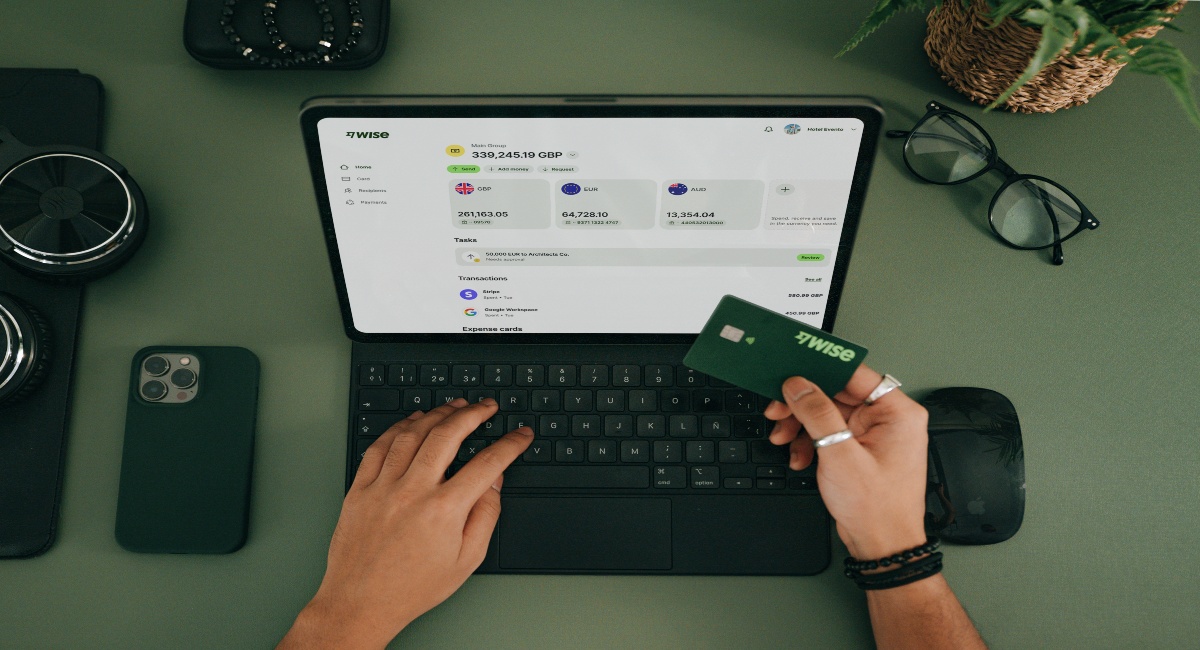
With a Wise Business account, you can:
When connected to QuickBooks, Wise Business can:
This integration can be particularly useful for businesses that regularly invoice international customers or pay overseas suppliers, as it helps ensure transactions are recorded in the right currency from the start.
| 💡 See how to connect Quickbooks with Wise Business |
|---|
QuickBooks’ multi-currency features can be a beneficial tool for businesses, but they do require the right plan and set-up to work effectively.
If your business deals internationally, whether you invoice overseas clients, pay foreign suppliers or hold multiple currency bank accounts, turning on this feature can save time and reduce errors. Not to mention, provide clearer financial visibility.
Just be sure you’re on the correct plan (Essentials or higher), and remember once you activate it, it can’t be undone.
The simple integration of Quickbooks is just one of the many benefits of leveraging Wise Business, for both day-to-day operations and larger plans to scale globally.

With Wise Business, you can:
Make the wise choice when selecting a business account for all your domestic and global needs.
Be Smart, Get Wise.
Investments can fluctuate, and your capital is at risk. Interest is offered by Wise Assets UK Ltd, a subsidiary of Wise Payments Ltd. Wise Assets UK Ltd is authorised and regulated by the Financial Conduct Authority with registration number 839689. When facilitating access to Wise investment products, Wise Payments Ltd acts as an Introducer Appointed Representative of Wise Assets UK Ltd. Please be aware that we do not offer investment advice, and you may be liable for taxes on any earnings. If you're uncertain, we urge you to seek professional advice. To find out more about the Funds, visit our website.
*Disclaimer: The UK Wise Business pricing structure is changing with effect from 26/11/2025 date. Receiving money, direct debits and getting paid features are not available with the Essential Plan which you can open for free. Pay a one-time set up fee of £50 to unlock Advanced features including account details to receive payments in 22+ currencies or 8+ currencies for non-swift payments. You’ll also get access to our invoice generating tool, payment links, QuickPay QR codes and the ability to set up direct debits all within one account. Please check our website for the latest pricing information.
Sources used:
Sources last checked on date: 02-Feb-2026
*Please see terms of use and product availability for your region or visit Wise fees and pricing for the most up to date pricing and fee information.
This publication is provided for general information purposes and does not constitute legal, tax or other professional advice from Wise Payments Limited or its subsidiaries and its affiliates, and it is not intended as a substitute for obtaining advice from a financial advisor or any other professional.
We make no representations, warranties or guarantees, whether expressed or implied, that the content in the publication is accurate, complete or up to date.

Learn a few quick tips to improve and maintain accounting accuracy, from choosing the right software, managing FX and more.

An essential guide to sending bulk payments internationally as a UK business, including best providers, fees, and steps to send your first bulk transfer.
Learn how invoicing management works, how to optimise it, and how Wise Business can help you streamline international payments.

Learn what the payment approval process is. And, top tips to streamline it to maximise efficiency and reduce errors.

Learn how the payment authorisation process works from start to finish, and what happens behind the scenes in seconds.

Struggling with vendor payment chaos? Learn how to streamline approvals, payments, and manage vendors without the usual headaches.