If you searched “how to type the dollar sign on keyboard”, you’re looking for the dollar sign: $. In Ireland, most people use the UK (British) English keyboard layout. On that layout, the dollar sign is in a predictable place: it’s on the 4 key (you type it with Shift).
This guide shows how to get the dollar sign on the keyboard on Windows, Mac, and mobile, plus what to do if you’re seeing the wrong currency symbol.
And if you transact in different currencies, take a look at services like the Wise Account, that make it easier to manage and send US dollars across borders.
Wise: One account
for 40+ currencies 🌏
How to type the dollar sign on my keyboard? (quick answer)
In Ireland, the dollar sign is usually printed above the number 4 on the top row, so if your device is using the UK (British) layout do the following:
On Windows and Mac: Shift + 4 → $
That’s also the answer for how to type dollar sign on a laptop keyboard—laptops use the same shortcut.
How to type the dollar sign ($) on Mac in Ireland
On a Mac, $ is also straightforward with the British/UK setup. The main thing to watch is the Input Source—macOS can switch input sources (for example, British vs another layout), which changes what certain keys type.¹
Step-by-step: how to type $ on Mac (British input source)
With a British input source active, follow the steps¹:
- Hold Shift
- Press 4
- You’ll get $
Isn’t it working? How to fix it if Shift + 4 won’t type $ on Mac
If Shift + 4 isn’t producing $, confirm your Mac is using a British keyboard input source¹:
- Open System Settings → Keyboard → Input Sources
- Add English → British (if it isn’t listed)
- Switch to British

How to type the dollar sign ($) on Windows in Ireland
On Windows in Ireland, the simplest method is the UK-layout shortcut. Once the United Kingdom keyboard is selected, the $ sign is always in the same place.²
Step-by-step: how to type $ on Windows (UK/British layout)
Once your Windows keyboard is set to the United Kingdom (British) layout, the dollar sign is built in and very quick to type. It’s mapped to the 4 key, so you don’t need any special menus—just a simple Shift shortcut.²
- Hold Shift
- Press 4
- You’ll get $
Isn’t it working? How to fix it if Shift + 4 won’t type $ on Windows
If you press Shift + 4 and don’t get $, double-check your Windows keyboard settings:
- Go to Settings → Time & language → Language & region
- Find Keyboards
- Add/select United Kingdom (British)
Step-by-step: how to type $ on Windows using an Alt code (backup method)
If you have a numeric keypad, you can also type $ using an Alt code:³
- Turn Num Lock on (if needed)
- Hold Alt
- Type 36 on the numeric keypad
- Release Alt → $
How to change dollar sign ($) to pound (£) on the keyboard
This is a common question in Ireland/UK because the 4 key types $ on the British layout. That’s normal, and usually you don’t “change $ to £” at all, you just use the correct pound shortcut.
Both currency symbols sit on the number row and only appear when you hold Shift. The key difference is simply which number you press:
- The $ sign is on 4 (so Shift + 4 gives $)
- The £ sign is on 3 (so Shift + 3 gives £)
How to insert a dollar sign on a mobile device (iOS and Android)
If you’re wondering how to type the dollar sign on a mobile keyboard, the good news is you don’t need to change any keyboard layouts on your phone. On both iPhone and Android, the $ symbol is built into the numbers and symbols keyboard, and it’s usually available in just a couple of taps.
Step-by-step: how to type $ on iPhone (iOS)
On iOS, the dollar sign is available from the symbols screen:
- Tap 123 to switch from letters to numbers/symbols
- Tap $ (it’s usually visible straight away)
- Optional: press and hold $ to see other currency symbols (useful if you also need € or £)⁴
Step-by-step: how to type $ on Android
Android keyboards can look slightly different (Gboard, Samsung Keyboard, etc.), but the steps are similar:
- Tap ?123 (or 123) to open numbers and symbols
- Tap $ to insert it
- If you don’t see $, open the next symbols page (often =<) and look again⁴
Keyboard won’t type dollar sign ($)? Ireland troubleshooting
If you still can’t type $ do the following:
- Confirm you’re using United Kingdom (British) on Windows (keyboard settings)²
- On Mac, confirm your Input Source is British¹
- Use the Windows Alt-code method Alt + 36 if you have a numeric keypad³
- On mobile, open 123 / ?123 and look for $ on the symbols pages.⁴
Wise Account: +40 currencies in one place
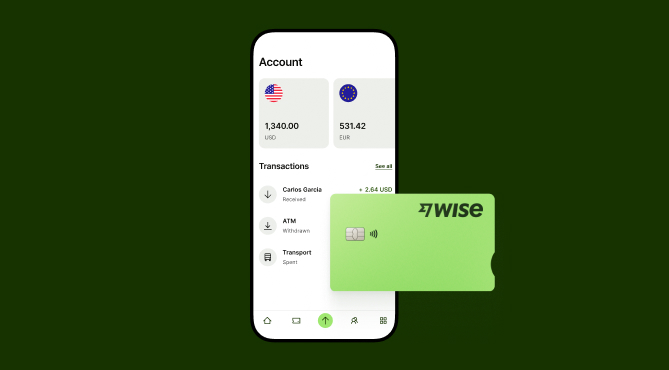
If you need to send money abroad, convert and pay in different currencies, have a look at what Wise can offer you in Ireland.
With the Wise Account you can:
- Hold 40+ currencies and convert between them at the mid-market rate. You'll see the conversion fees upfront
- Get local account details in 8+ currencies, including USD, GBP, and EUR
- Receive cashback on EUR, GBP and USD held in your account
- Order a Wise debit card which you can use with our Smart Conversion technology
- Set up Auto Conversions based on your desired rate in the Wise app or use our Wise Rate Tracker to request exchange rate notifications directly to your email
- Create Wise Virtual Cards, and save on online shopping
- Get instant notifications of all your purchases via the Wise app so you can track your expenses. If you lose your card, you can easily cancel it in the app to keep your money safe
- Have a supporting, English-speaking customer service.
Open your Wise Account
for free 🚀
Sources
- Apple Support Community — guidance on adding/switching English → British input source in macOS Keyboard settings
- Microsoft Learn — United Kingdom Keyboard (KBDUK)
- Alt-Codes.net — Dollar sign Alt code (36) and instructions
- MacMost — iPhone/iPad currency symbol typing
Sources last checked on 24 March 2026.
*Please see terms of use and product availability for your region or visit Wise fees and pricing for the most up to date pricing and fee information.
This publication is provided for general information purposes and does not constitute legal, tax or other professional advice from Wise Payments Limited or its subsidiaries and its affiliates, and it is not intended as a substitute for obtaining advice from a financial advisor or any other professional.
We make no representations, warranties or guarantees, whether expressed or implied, that the content in the publication is accurate, complete or up to date.