PhilHealth contribution for OFWs: how much to pay, how to pay and check status
Learn the PhilHealth contribution for OFWs, including current rates, payment options, how to pay from abroad and how to check your status.



PhilHealth is designed to help every Filipino get affordable medical care through small monthly contributions which go towards paying for health services whenever you need them. If you’re employed you’ll normally find your PhilHealth contributions are handled for you by your employer, but if you’re self-employed, a freelancer, an OFW or a voluntary scheme member you’ll need to handle the payments yourself.
Managing your PhilHealth payments in person can take up precious time. Paying your PhilHealth contributions online may be quicker and more convenient. This guide looks at how to pay PhilHealth online through your bank or an app like GCash. We'll also introduce the Wise account, a handy companion to make your money go further with low, transparent fees.
| Table of contents |
|---|
Sign up for a free account now
Before we look at where to pay PhilHealth online you’ll need to make sure you have everything you need to process your payment.
Here’s what to prepare to make a PhilHealth payment online on a voluntary basis, or as an OFW or self employed person¹:
- Your PhilHealth Member Portal account
- Your PhilHealth ID Number (PIN)
- A valid Payment Reference Number (PRN)
- Your email or mobile number
Once you have all your information ready you can choose your preferred method of paying PhilHealth online such as a bank account, debit or credit card, or an e-wallet like GCash or Maya.
The next obvious question is - where can I pay PhilHealth online most conveniently?
Here the good news is that there are a range of options from e-wallets like GCash and Maya to local banks and card services². Whichever one you select, make sure you’re using official PhilHealth payment partners only, for security reasons.
You can find the full listing of PhilHealth accredited banks³ online - including BPI, Security Bank, Land Bank, Union Bank, MYEG Philippines and BancNet providers via the Philippine e-Gov facility.
Digital payments are convenient for many people - but they’re particularly important if you’re an OFW and don’t have access to local in person services in the Philippines to make your contribution in cash.
We’ll explore how to pay PhilHealth online for OFWs and anyone else who prefers a digital payment in a moment. You’ll be able to select to pay using a wallet, card or bank - but whichever you prefer, your first step is to get your Payment Return Number (PRN):
Your PRN is a unique code for one payment only - so you must take this step every time you make your PhilHealth contribution.
Once you have your PRN, you can choose your payment method and make your contribution. If you would like to pay PhilHealth online using a credit or debit card you can take the following steps:
You’ll receive a receipt instantly to show the payment has gone through.
PhilHealth contributions are made in PHP. If you’re paying with a foreign debit or credit card - as an OFW for example - bear in mind that your bank or card issuer may impose a foreign transaction charge. This can add around 3% to your bill in the end.
If you have an account with a local PhilHealth accredited bank like BPI, Union Bank or Security Bank, you can also process your payment that way:
Bear in mind that this payment method takes a day or two to settle, so give plenty of time to process your funds before the payment due date comes round. Because this option can only be used for local banks it may not be the most convenient option for OFWs and people who live outside of the Philippines.
If you’re a regular user of local e-wallet apps, that may be the most convenient way to pay your PhilHealth contributions. Apps like GCash and Maya are also available to OFWs who have registered their accounts and overseas phone numbers - making this an option for both people living in the Philippines and overseas.
Here’s how to pay PhilHealth online using GCash:
Here’s how to pay your PhilHealth contribution using Maya:
Once you’ve made your PhilHealth contribution you can check it’s processed properly on the PhilHealth Member Portal. You’ll also receive an official confirmation message or receipt when your payment is processed. Different payment methods may take differing lengths of time to arrive, so it’s worth double checking your transfer has worked so you know you’re covered.
Here’s how to check your PhilHealth contributions after payment
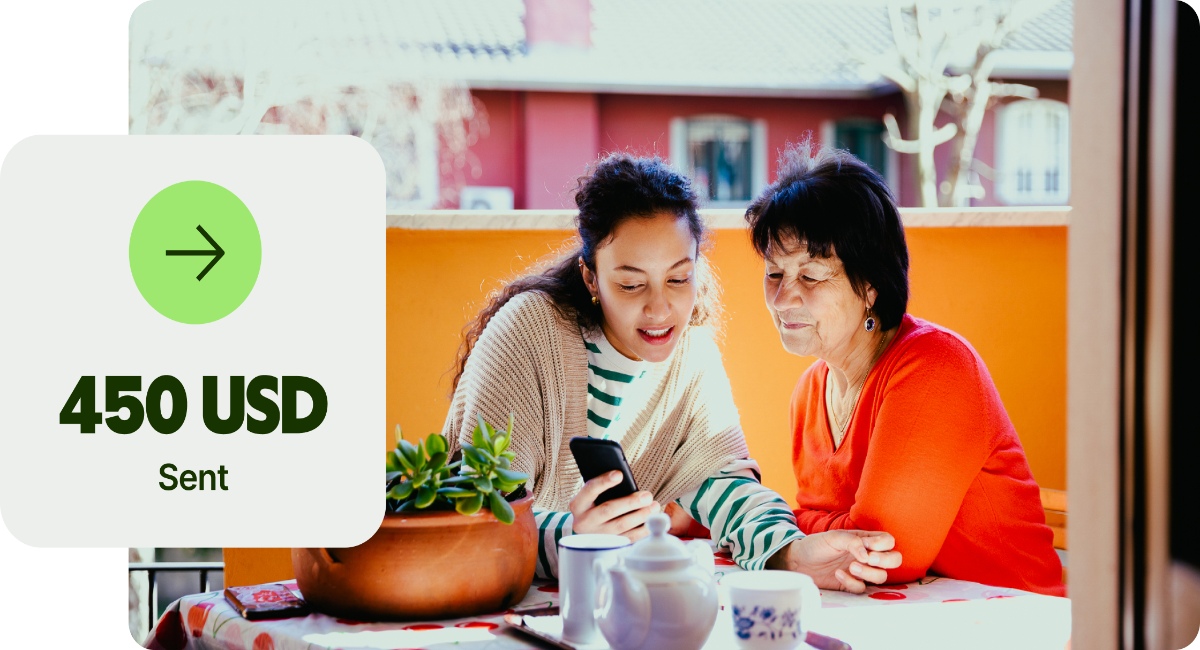
The Wise account is an easy way to hold and exchange 40+ currencies, including PHP, USD, CNY, and more. All you need to do is create a free account to get started.
With Wise, you can exchange currencies at the mid-market rate each time, with low, transparent conversion fees from 0.57% and absolutely no markups. Plus, you can order a Wise card for convenient spending at the same great rate, without any foreign transaction fees.
In supported countries, you can also use Wise to pay with QR codes, which means you can pay like a local without needing cash or a separate local wallet. This can be especially handy when you're travelling in places where QR payments are widely accepted.
At times you need cash, you can also make up to 2 free ATM withdrawals to the value of 12,000 PHP when you're overseas. You'll even get 8+ local account details to get paid conveniently to your Wise account in PHP and a selection of other major global currencies.
Sending money or making payments abroad? Wise also offers fast, low cost transfers to 140+ countries - you can track your transfer in your account and your recipient will also be notified when a transfer reaches them.
You can pay for PhilHealth contributions online using a debit or credit card, from your bank, or with an e-wallet like GCash or Maya. You can also pay through payment centers like SM Bills Payment, Bayad Center, or Robinsons, or through an overseas remittance center if you’re an OFW.
Self employed people and voluntary members can pay monthly, quarterly or annually. If you’re an OFW you can pay monthly, quarterly or annually - but you also have the option of paying the full amount before you leave to work overseas so you know everything is sorted before you travel.
BPI is an approved collecting partner for PhilHealth. This means you can make your contribution through your BPI banking app. Just log in and tap Bills Payment, then select PhilHealth as the payee. You’ll be prompted to enter your PRN and can then tap to confirm your payment.
Sources:
*Please see terms of use and product availability for your region or visit Wise fees and pricing for the most up to date pricing and fee information.
This publication is provided for general information purposes and does not constitute legal, tax or other professional advice from Wise Payments Limited or its subsidiaries and its affiliates, and it is not intended as a substitute for obtaining advice from a financial advisor or any other professional.
We make no representations, warranties or guarantees, whether expressed or implied, that the content in the publication is accurate, complete or up to date.

Learn the PhilHealth contribution for OFWs, including current rates, payment options, how to pay from abroad and how to check your status.

How much is Pag-IBIG contribution for OFWs? Learn rates, benefits, and how to pay your Pag-IBIG contributions online from abroad.

Applying for a BPI credit card as an OFW? Learn the requirements, documents, income rules, and how to apply online from abroad step by step.
Looking for your first credit card? Compare UnionBank credit cards for beginners, including fees, requirements, and how to apply.
Compare OFW savings accounts in 2026, including BPI, Metrobank, and PNB. Learn fees, requirements, and smarter ways to manage money abroad.
Learn how to get a TIN number in the Philippines, including online application steps, requirements, and BIR registration.